What you need to know
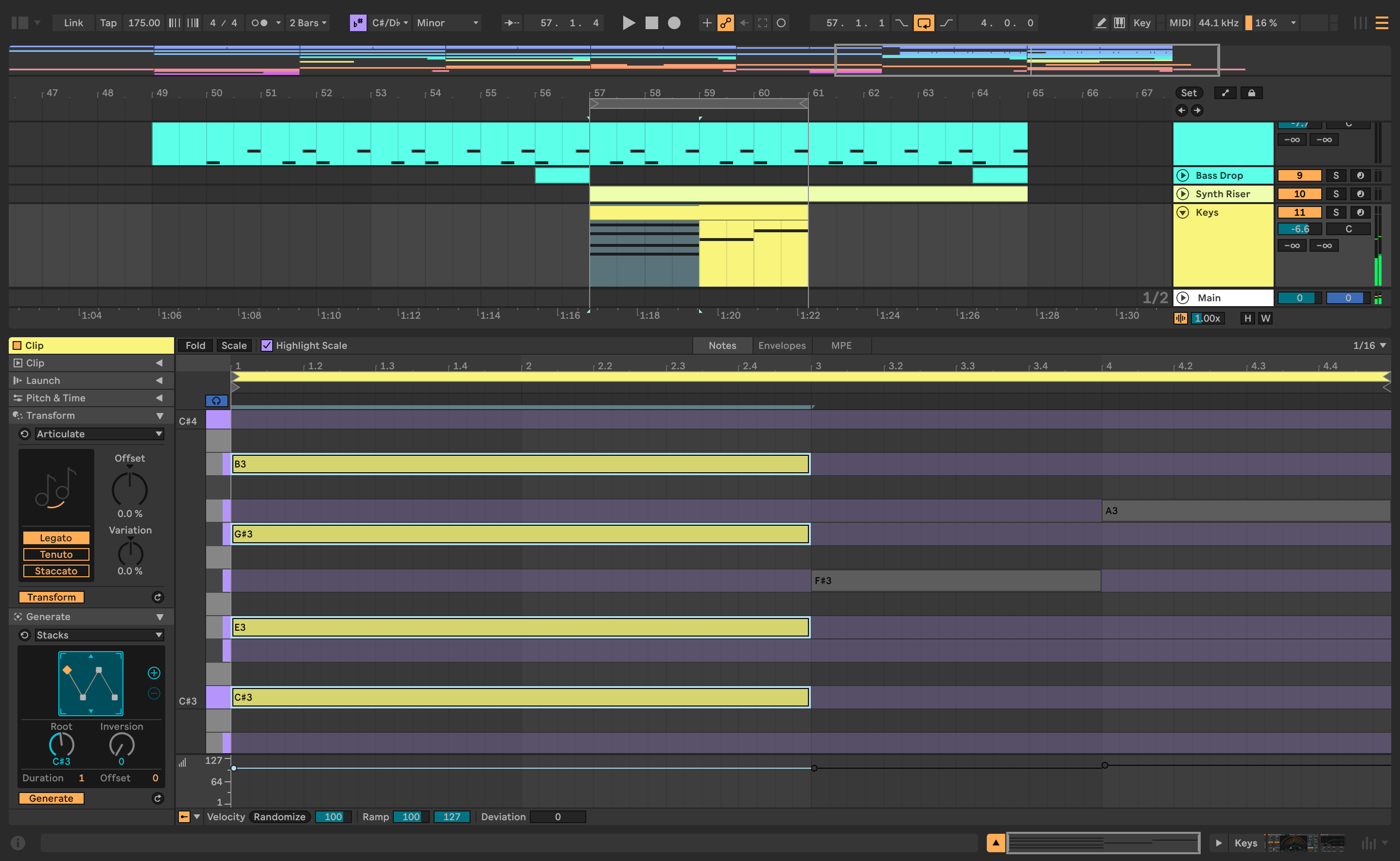
Ableton Live 12 adds MIDI Transformations and Generations to the Clip View note editor. Transformations reshape selected notes; Generations create material from a chosen process. Updated MIDI devices can also follow the global scale or a clip's scale.
Select the musical job first
Use a transformation when useful notes already exist but need a change in rhythm, articulation, density, or shape. Duplicate the clip, select only the intended notes, and apply one operation. This creates a clean comparison and keeps the original performance available.
Use generation to fill a specific gap: a two-bar percussion variation, a restrained counterline, or a starting pattern for a sound-design patch. Set the key and scale where appropriate, but remember that scale membership does not guarantee a good bass movement or voice leading.
Preserve what made the part human
After any operation, inspect note starts, lengths, velocity, overlaps, and expression. Listen against the lead element. A technically legal note can still compete with a lyric, and perfect density can erase the pause that made a groove work.
Commit the best result by editing it manually. Remove notes, create section-level contrast, and automate the instrument. The final clip should read as an arrangement choice rather than evidence that a tool was available.
Keep experiments cheap
Name alternate clips by function, use separate Scenes or arrangement lanes, and delete weak options after the direction is approved. Generative abundance can slow a session if every result stays alive.
How this note was made
- Ableton: MIDI Tools and device updates in Live 12 Official or first-party reference used for the factual claims in this article.
- Ableton: Live 12 Manual Official or first-party reference used for the factual claims in this article.