What you need to know
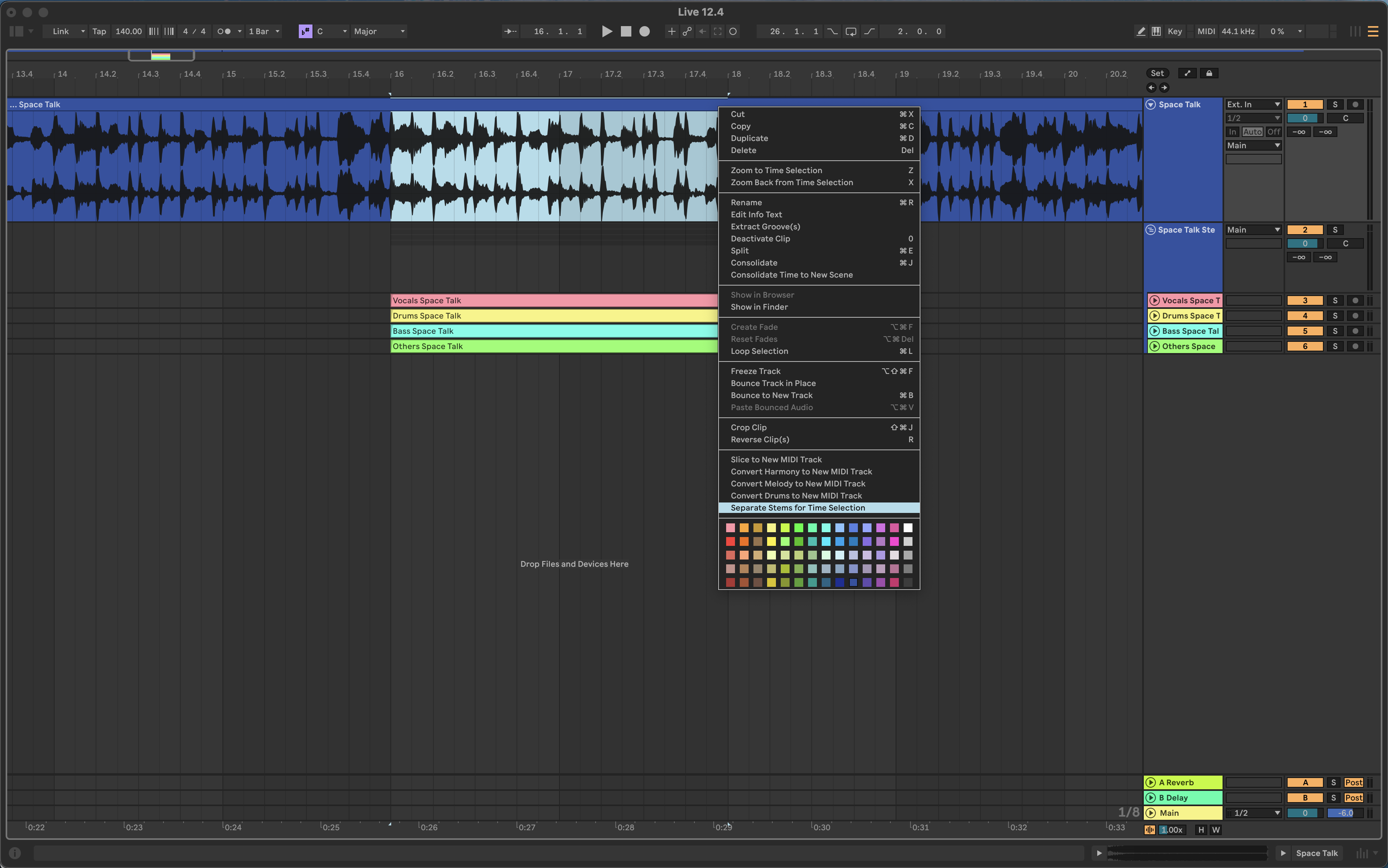
Stem separation can turn a mixed file into estimated vocal, drum, bass, and other components. In Live 12.4, Ableton says separation can process only the audible or selected portion of a clip, and selected stems can be merged to a single track.
Use it for a defined task
Separating a short chorus can help study the balance of a reference without processing an entire song. Removing an estimated vocal can create rehearsal space for a singer. Isolating drums may reveal broad groove and arrangement choices. A merged instrumental estimate can also help a songwriter test a new top line privately.
For remix or public-release use, permission still matters. A technical ability to separate audio does not grant rights to copy, distribute, or monetize the source.
Expect artifacts
The resulting tracks are mathematical estimates, not the files used in the original mix. Reverb tails may appear in several stems. Cymbals can leak into vocals, bass harmonics can move into the instrumental stem, and transient edges may smear. Solo each stem to find problems, but judge the result in the intended combination as well.
Avoid building a critical mix around a damaged isolated stem if the original multitrack can be requested. For client work, ask for the correct exports first. Separation is best treated as a rescue, study, or creative tool.
Turn the result into a session decision
Name separated files clearly, keep the source, and note the software version. Freeze or print important edits so they can be recalled later.
How this note was made
- Ableton: What is new in Live 12.4 Official or first-party reference used for the factual claims in this article.