What you need to know
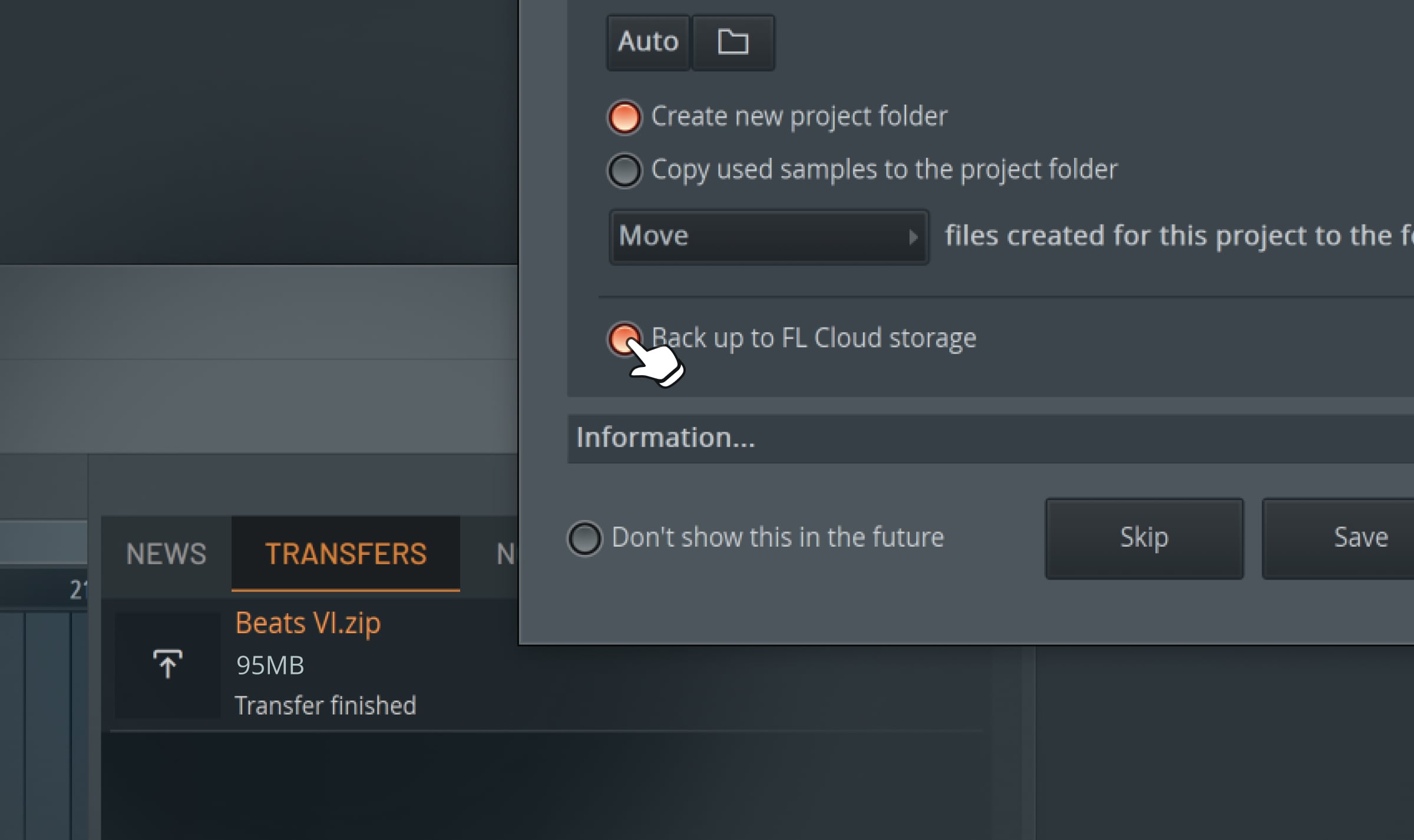
FL Studio 2026 adds project backup to FL Cloud for all license holders. Image-Line says projects are uploaded as zipped packages that include used samples, with manual and automatic options inside FL Studio.
What the feature covers
You can choose File, then Save and back up to FL Cloud for a manual copy, or enable automatic backup on save in Project settings. Saved projects appear under FL Cloud project backups in the Browser. Image-Line's current tiers list 500 MB for free accounts, 5 GB for Plus, and 1 TB for Pro.
A collected project solves one common failure: the FLP opens, but samples still point to a drive or Downloads folder that no longer exists. It does not automatically preserve third-party plug-in installers, licenses, external preset libraries, or the exact operating-system environment.
Add two more layers
Keep a working copy on the production drive and a separate local or external backup. Use FL Cloud as the off-site layer, not the only layer. Before updating FL Studio or a critical plug-in, save a dated version and render important instrument or effect tracks.
Test recovery on a copied project. Download it, open it from a different folder, and verify samples, automation, routing, and plug-in recall. Watch storage limits and upload completion instead of assuming every save reached the cloud.
Make recovery readable
Use descriptive version names and include a text note with tempo, sample rate, required plug-ins, and the approved bounce. The best backup is the one another person can understand during a deadline.
How this note was made
- Image-Line: FL Cloud Storage FAQ Official or first-party reference used for the factual claims in this article.
- Image-Line: FL Studio 2026 Official or first-party reference used for the factual claims in this article.